给 TextView 设置图片

故事背景

在需要展示数据的时候,经常会遇到“图片+文字”的效果,而在 ListView 、 GridView 或者 Spinner 这些 AdapterView 中尤为常见。

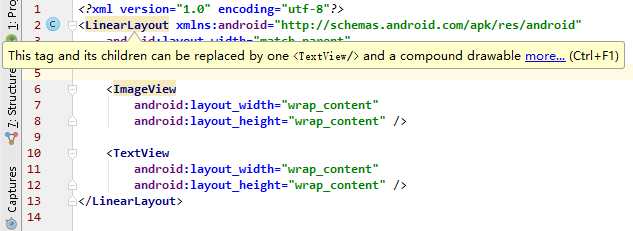
一般情况下,都是使用布局文件来定义 Item 的布局的,当使用 Android Studio 写下如下代码时,Lint 会发出警告提示:

1
2
3
4
5
6
7
8
9
10
11
12
13
14
<?xml version="1.0" encoding="utf-8"?>
<LinearLayout xmlns:android="http://schemas.android.com/apk/res/android"
android:layout_width="match_parent"
android:layout_height="match_parent"
android:orientation="horizontal">
<ImageView
android:layout_width="wrap_content"
android:layout_height="wrap_content" />
<TextView
android:layout_width="wrap_content"
android:layout_height="wrap_content" />
</LinearLayout>
Lint 提示

意思是说,目前的整个布局可以使用一个 <TextView/> 和 一个 compound drawable 来实现。

完整的提示如下:

This tag and its children can be replaced by one <TextView/> and a compound drawable.
A LinearLayout which contains an ImageView and a TextView can be more efficiently handled as a compound drawable (a single TextView, using the drawableTop, drawableLeft, drawableRight and/or drawableBottom attributes to draw one or more images adjacent to the text). If the two widgets are offset from each other with margins, this can be replaced with a drawablePadding attribute.

修改布局

修改布局如下:

1
2
3
4
5
6
7
8
9
10
11
12
13
<?xml version="1.0" encoding="utf-8"?>
<LinearLayout xmlns:android="http://schemas.android.com/apk/res/android"
android:layout_width="match_parent"
android:layout_height="match_parent">
<TextView
android:layout_width="wrap_content"
android:layout_height="wrap_content"
android:drawableLeft="@mipmap/ic_launcher"
android:drawablePadding="16dp"
android:gravity="center"
android:text="你好" />
</LinearLayout>
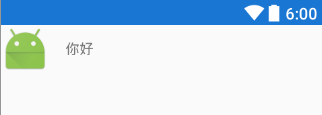
修改后的效果

修改代码

仅仅修改布局,是不能满足业务需求的,往往在展示数据时,图片都是会根据数据的变化而变化的,这就需要在代码中对图片进行设置。

TextView类中,可以使用以下 6 种方法设置 compound drawable.

1
2
3
4
5
6
7
8
9
10
11
12
13
14
15
16
17
// Added in API level 1
public void setCompoundDrawables (Drawable left, Drawable top, Drawable right, Drawable bottom)
// Added in API level 1
public void setCompoundDrawablesWithIntrinsicBounds (Drawable left, Drawable top, Drawable right, Drawable bottom)
// Added in API level 3
public void setCompoundDrawablesWithIntrinsicBounds (int left, int top, int right, int bottom)
// Added in API level 17
public void setCompoundDrawablesRelative (Drawable start, Drawable top, Drawable end, Drawable bottom)
// Added in API level 17
public void setCompoundDrawablesRelativeWithIntrinsicBounds (Drawable start, Drawable top, Drawable end, Drawable bottom)
// Added in API level 17
public void setCompoundDrawablesRelativeWithIntrinsicBounds (int start, int top, int end, int bottom)

如果按 API Level 来区分,旧 API 是没有 Relative 的,而新 API 是有 Relative 的,其实区别可以从参数中看出来:
letf -> start
right -> end

经常写布局时,都会发现,如果设置了 layout_marginLeft 会提示让你加上 layout_marginStart,以更好地支持“right-to-left”布局。
这个“right-to-left”布局是 Android 4.2 (API Level 17) 新增的特性,因为有些国家/地区的阅读/书写顺序是从右到左的。

而为了兼容低版本,所以使用低版本的方法即可。

当然,也可以这样使用:

1
2
3
4
5
if (Build.VERSION.SDK_INT >= 17) {
item.setCompoundDrawablesRelativeWithIntrinsicBounds(0, R.drawable.picture, 0, 0);
} else {
item.setCompoundDrawablesWithIntrinsicBounds(0, R.drawable.picture, 0, 0);
}

新旧 API 的 3 个方法是一一对应的,其内部实现也是类似的。

3 个方法的使用方式的区别:

  1. setCompoundDrawables(Drawable left, Drawable top, Drawable right, Drawable bottom)
    • 调用该方法前,需要手动调用 Drawable.setBound() 进行绑定。
  2. setCompoundDrawablesWithIntrinsicBounds(Drawable left, Drawable top, Drawable right, Drawable bottom)
    • 无需手动绑定,内部进行绑定后,会调用 setCompoundDrawables()
  3. setCompoundDrawablesWithIntrinsicBounds(int left, int top, int right, int bottom)
    • 无需手动绑定,内部将资源 id 转成对应的 Drawable 后,会调用 setCompoundDrawablesWithIntrinsicBounds() 进行绑定。

可根据需要自行选择。